Screenshots
Screenshots can be very helpful when logging bots, working with bot issues and for giving me updates on your bot performance.
Small Screenshots
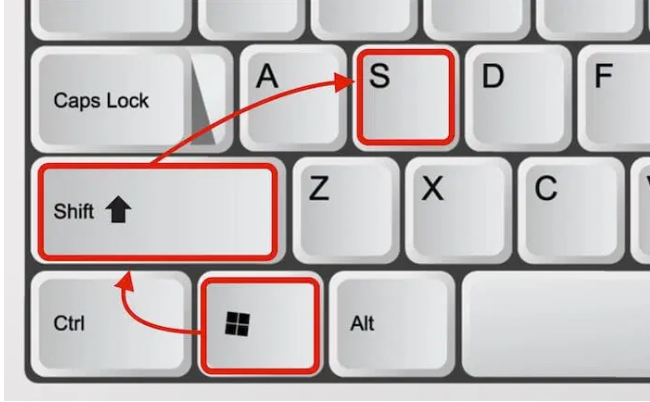
An easy way to do screenshots is to press these 3 keys all at the same time “the Windows Key + SHIFT + the “s” key”.
I usually press “windows key + shift + s”, then the screen dims to dark with a menu at the top.
Then I left click anywhere on the screen which becomes the top left of my “drag and take photo” screenshot box area.
If it does not give you that simple box option, then you can click on the screenshot menu at the top and select “Rectangle”, then I think it is the easiest way to take screenshots of just the part of the screen you need.
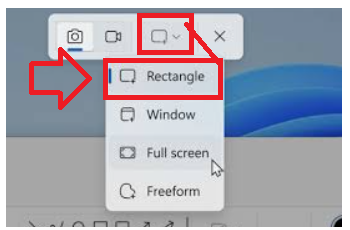
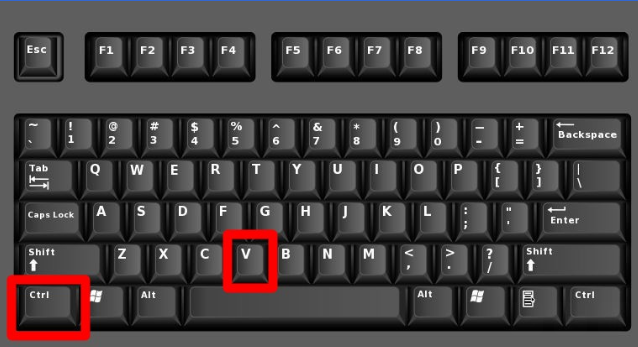
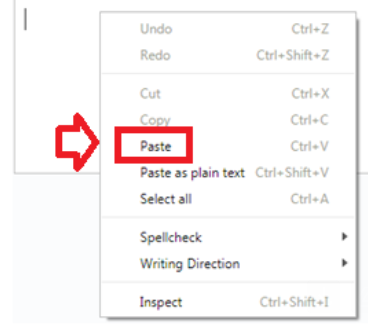
I then click paste into a word file and the image I boxed should appear. You can right-click and select “paste” in the pop-up menu, or you can press “CTRL + V” to paste into the Word file or email.
Full Screenshots
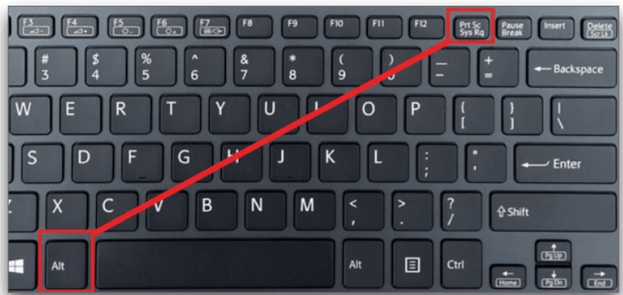
Or you can just press the “”print screen” key on your keyboard to screenshot the entire screen
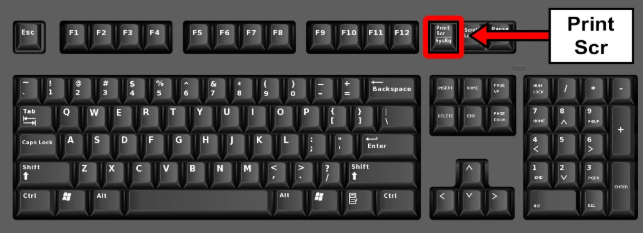
On some PCs it might need the function key to be pressed at the same time as you press the “Print Scr” key.
Paste the screenshot into an email or document
Then, in your email or document, press “ctrl + the “v” key” and it will paste the small screenshot into your email. Then you won’t reach attachment limits quickly from photos.
Or you can right-click your mouse and left-click “paste” in the pop-up menu.
Still not sure how to screenshot? This video shows how to do it: https://youtu.be/PsBVxv37ex0?si=Z34tVacwIry5bbC2&t=96
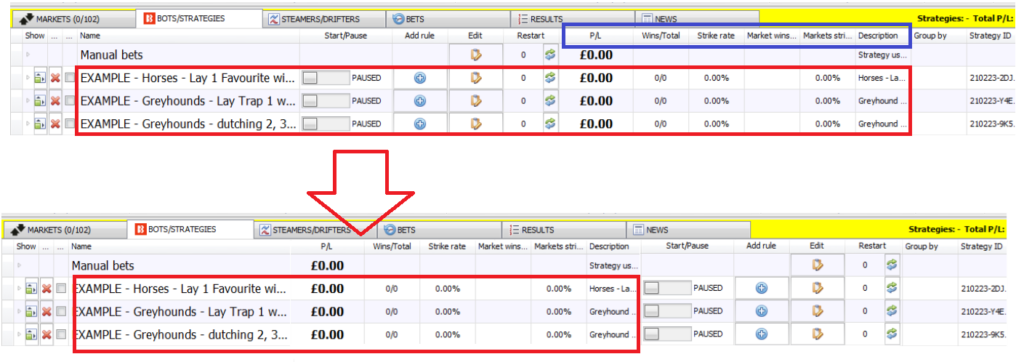
Get just the BFBM data you need
You can re-arrange column positions in BFBM by left-click-and-holding on a column header. Then you can drag and move it to a better position.
I don’t need to screenshot the Start/Pause, Add Rule, Edit and Restart columns each time, so I move the key data columns over to the left, next to the strategy name. Then I only need to screenshot a smaller area each time. It keeps my Word documents easier to manage.