Run BFBM in both Real mode and Simulation mode on one PC or VPS

I have kindly been taught by Edwin (the guy who made the BFBM bet history autosave program) how to create a virtual desktop within your windows setup.

You can now run some BFBM strategies in real mode and others in simulation mode.

It does need a bit more technical knowledge than usual, but I have tried to explain how to do it on this page.

Please try to follow the steps carefully and in the correct order.

If it looks still too tricky, then I can do it for you with a  1-to-1 TeamViewer online session.

https://bettingsystemsguide.com/1-to-1-online-sessions/

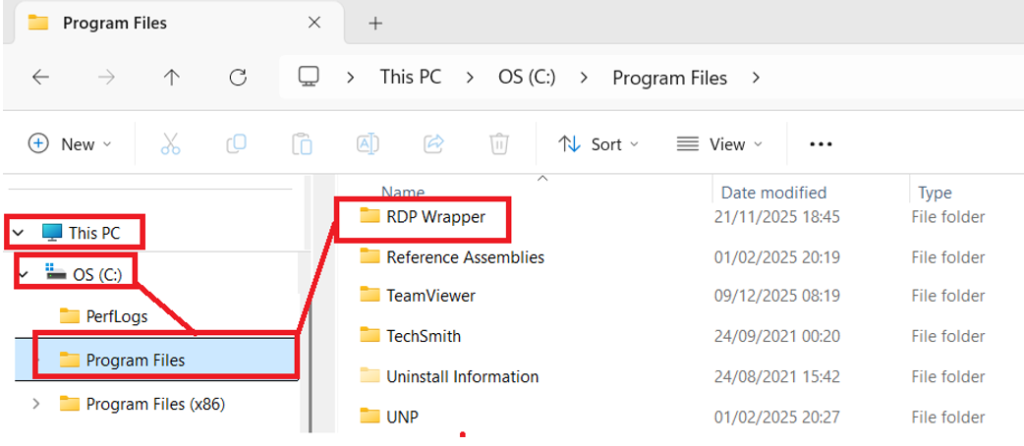
1 Add folder “RDP Wrapper” to the program files folder.

1. Add folderRDP Wrapper” to the program files folder.

Navigate to the program files folder.

Right click and “add folder”

Name the folder “RDP Wrapper”.

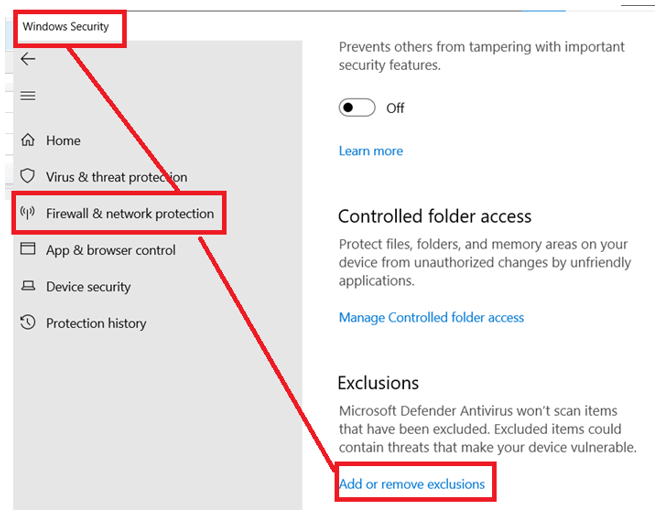
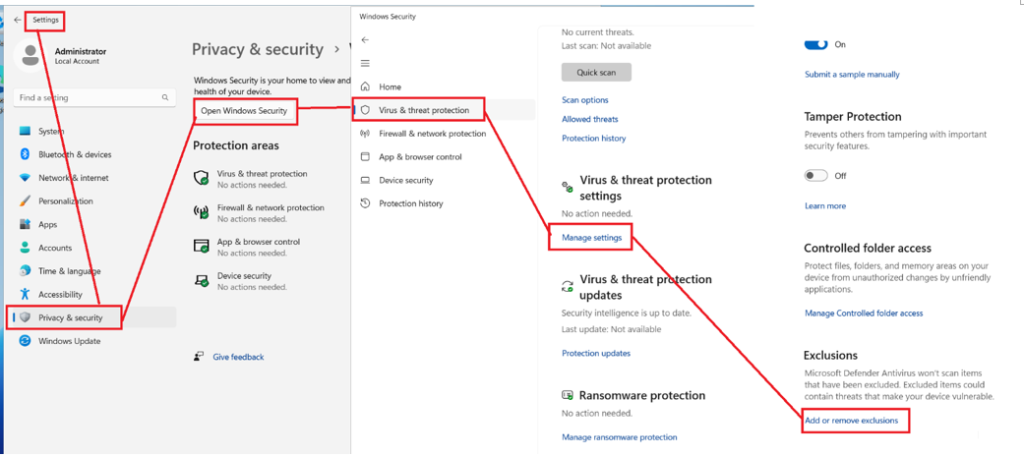
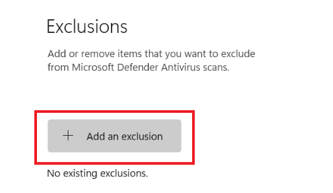
2 “Add an exclusion” for the RDP Wrapper folder.

2. Go to Settings > Windows Security > Virus and Threat Protection > Virus and threat protection settings > Exclusions > Add or Remove Exclusions

Click “Add an exclusion” for the RDP Wrapper folder. (So Windows does not delete it after install.)


3 Download and install Automatic RDP Wrapper installer and updater v.1.4.1

3  Download and install Automatic RDP Wrapper installer and updater v.1.4.1

Page link: https://github.com/asmtron/rdpwrap/releases

You can paste the file link below directly into your browser window.

File link: https://github.com/asmtron/rdpwrap/releases/download/v1.4/RDPWrap-with-Autoupdate-v1.4-Installer.exe

After it installs, Windows will restart.

4 Download and install Remote Desktop Manager by Devolutions. (Free version)

4  Download and install Remote Desktop Manager by Devolutions. (Free version)

https://devolutions.net/remote-desktop-manager/

It might also ask you to download Windows Desktop Runtime. Say, yes.

5 Add Windows Users

5 Go to Windows Settings > Accounts > Other Users

Click “Add someone else to this PC”

Select “I don’t have this person’s sign in information.”

Select “Add a user without a Microsoft account.”

Give it any username and password. E.g. BFBM1 for the first BFBM instance.

Change the account type to “Administrator”

6 Start Remote Desktop Manager

6.1 Start Remote Desktop Manager

Select “skip” for the opening settings options.

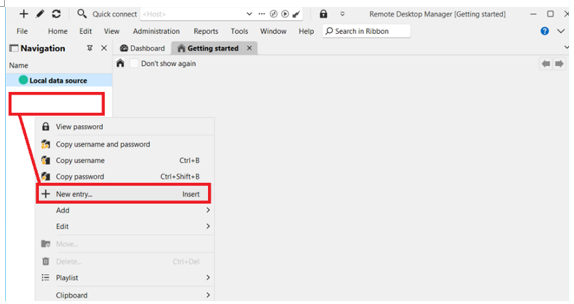
Right click on the blank white area on the left.

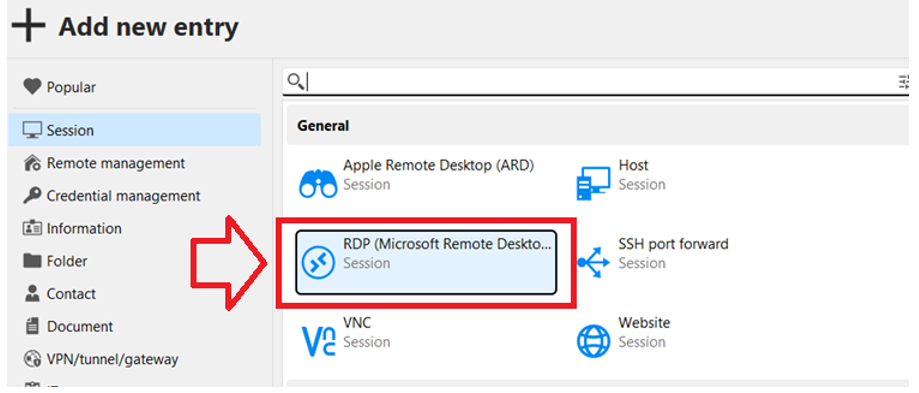
Select “Add entry”

6.2 Select “RDP (Microsoft Remote Desktop)”

7 Enter RDP Details

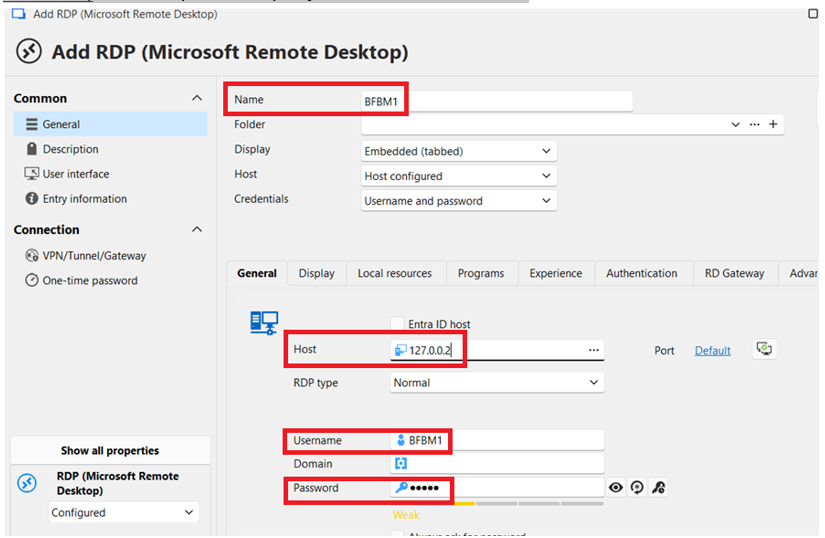
7 Enter just the necessary information. Then click “Add”

Name: Anything is okay (For example, BFBM!)

Host: 127.0.0.2 (The host is always this number)

Username: The user you just added to windows.

Password: The user password you just added to windows.

8 Open the RDP (Remote Desktop Program)

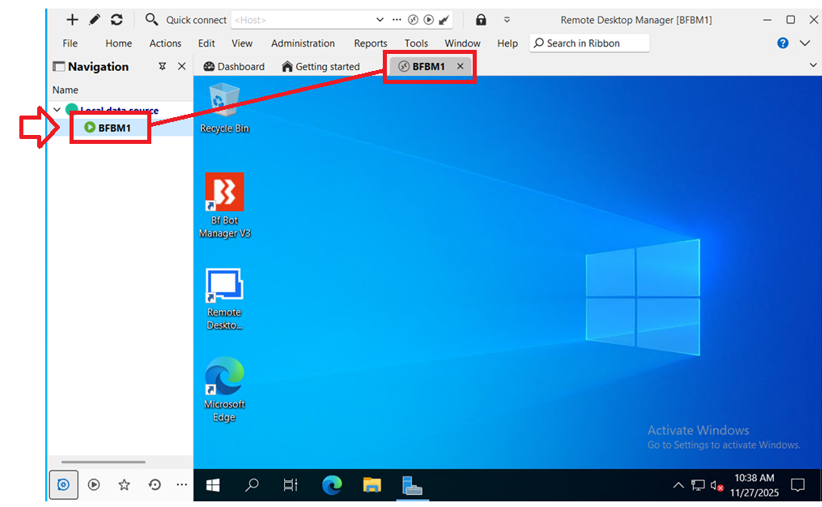
8 Double-click on the name on the left and the virtual remote desktop (RDP) will open.

(Maximise your RDM (Remote Desktop Manager) application before you open the virtual remote desktop so that the screen as large as possible.)

You now have a virtual desktop inside your desktop.

You can download and install BFBM here and run it in simulation mode or real mode.

If you had selected “install for all users” when you installed BFBM on your main desktop, then BFBM will already be here.

9 Setup BFBM

You will need to enter your

BFBM license key

Betaminic URL for importing tips

TippingSports URL for importing tips

HedgerPro URL for importing tips

InPlayTrading login details for getting enhanced inplay data

Telegram integration information if used

So it might be a good idea to paste all that information into a word file for easy copy and pasting instead of going into the various websites each time.

Note 1: For IPT (In Play Trading) users

InPlayTrading has a limit of 2 concurrent logins by default, so if you are using

1 desktop browser login

1 mobile phone browser login

1 main BFBM login

6 Virtual Desktop BFBM logins

Then you would need to contact IPT support and ask them to increase the number of concurrent logins that you are allowed. In some cases, they may ask for multiple subscriptions to cover large numbers of concurrent logins. So choose carefully which BFBM instances really need the IPT data or not.

Note 2: For Betaminic and TippingSports users

For services like TippingSports and Betaminic integrated with BF Bot Manager, there is a specific limit of one request per minute to download tips from the source website URL. The default and recommended setting for automatic reloads is generally every 5 minutes to avoid being blocked by the server. If you have multiple BFBMs getting tips from TippingSports, then consider longer time gaps to avoid hitting the request limit.

You can see if you are hitting the request limit in the BFBM log file if there are any error messages there.

So, again, choose carefully which BFBM instances really need the TippingSports tips or not.

For heavy users with multiple BFBM instances needing TippingSports tips, it is also an option to create multiple TippingSports accounts following different accounts for different BFBMs to avoid any issues.

Betaminic tips get sent out 6 hours before KO, so having longer intervals between tip requests is fine.

Note 3: PC Resource Usage

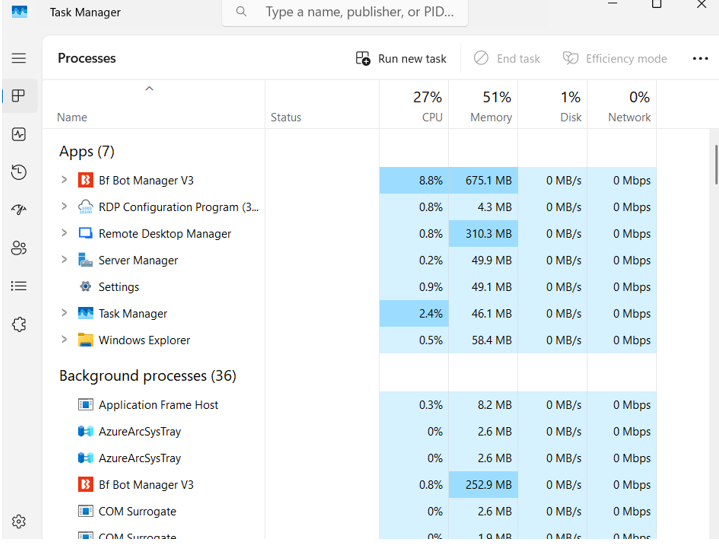
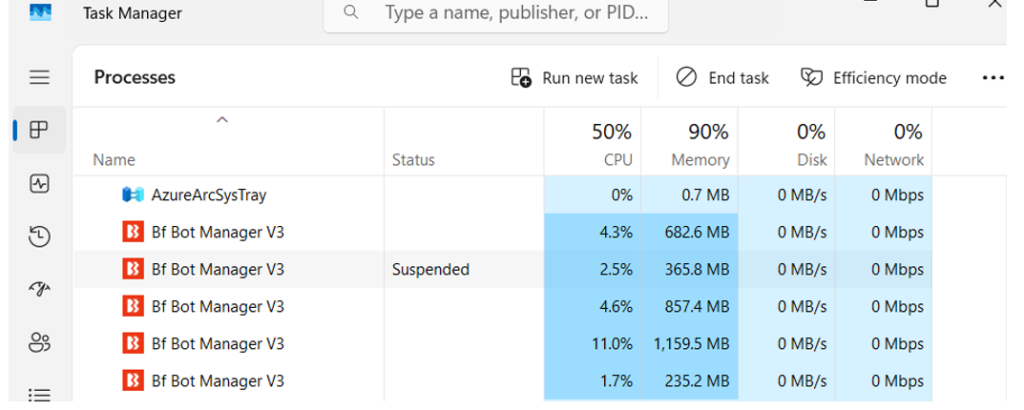
If you run multiple BFBMs in virtual desktops, then it can be good to use the “Task Manager” application to monitor CPU performance.

Closing unnecessary programs like internet browsers can reduce strain on the PC resources.

Virtual Desktop BFBM instances appear in the “background processes” area.

With one main BFBM and four more BFBMs running on RDPs my new cheap VPS is at about its maximum capacity.

Five BFBMs should be enough for all my research and betting I hope!

Looks difficult?

If it looks still too tricky, then I can do it for you with a  1-to-1 TeamViewer online session.

https://bettingsystemsguide.com/1-to-1-online-sessions/